
How to generate a text file – tutorial transcript
To generate a text file:
Step 1. Drag and drop the Text File Export Block from the Block Library, or right-click on the Canvas and select “Add Export Block” and then “Text File Export”.
Step 2. Connect the Text File Export Block to a block that contains the data that you would like to export.
Step 3. Click on the Text File Export Block to access its settings.
Step 4. Click on the “Specify File” button. Provide the name, type (.txt or .csv), and location of the future file, and click “Save”.
Step 5. Press the “Run with Outputs” button to write data to the text or .csv file.

Delivering Files
When you are running Canvas on your own machine, it generates a file that file is on your local drive.
When you are running a Canvas in the Cloud Automation Service, through Server Automation, or when running in Desktop, you often need to publish the data to a cloud hosted destination so that other services can access it.
For any file type, including Text, CSV, and Excel, first create the export block and configure the file. Next, select the Delivery tab in the upper left tab control of the main Analytics Canvas interface and click on the “New Delivery” menu item and select File System. Note that you have other options here too- you can email smaller files, and you can publish TDE files to Tableau server or Online.
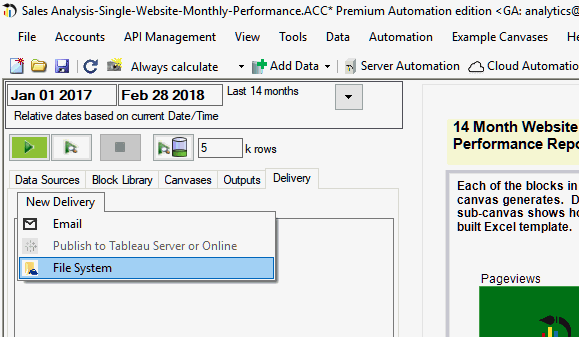
You have the option to choose from Google Cloud Storage, Dropbox, or Amazon S3:

If you haven’t already done so, you will be prompted to create a credential that can access the related service. You can then choose the destination for your file to be delivered to.

Contents:
- Text File Export
- CSV File Export
Related Materials:
Transcript – How to generate a text file or a CSV file
Other resources:
Tutorial – How to import data from Text and CSV files
Documentation
Length:
0:58
You can download a free trial of Analytics Canvas to follow along with the video.